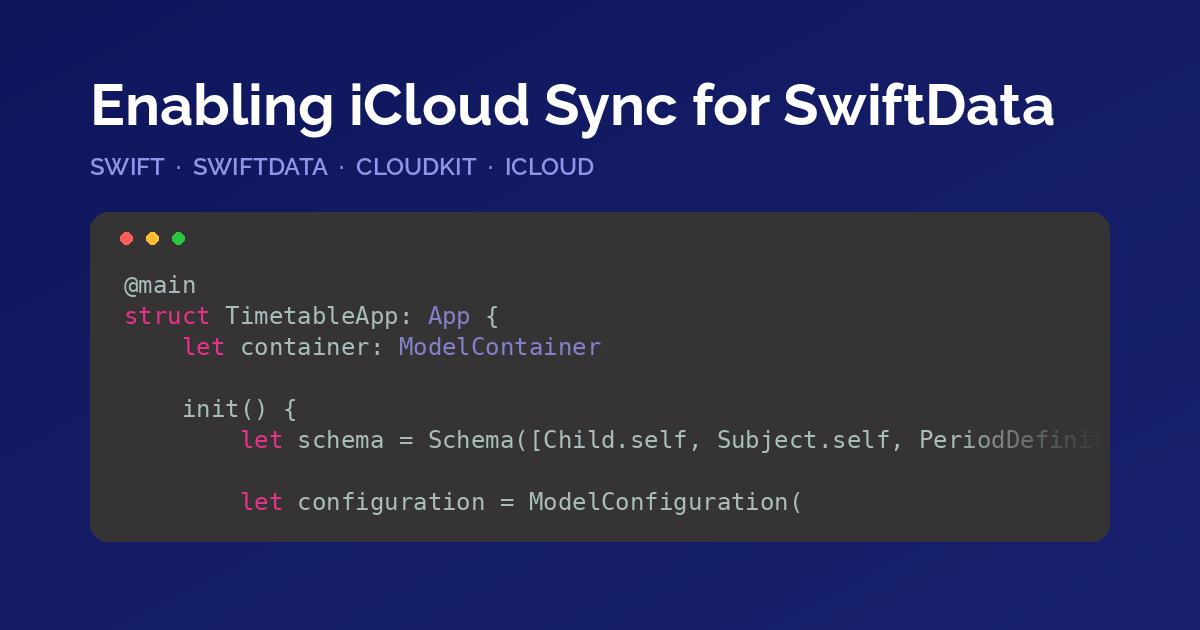
Enabling iCloud Sync for SwiftData
Part 1 of a three-part series on SwiftData and iCloud sync. Part 2 covers avoiding duplicate data, part 3 covers getting it into production.
I have two apps that use SwiftData:
- Batteries At Home keeps an inventory of battery-powered devices, which batteries they take, and what you have in stock.
- KidsPlaner stores school timetables: periods, subjects, weekdays, and which child they belong to.
Two different apps with the same persistence layer underneath — a local SwiftData store inside an App Group so the widget can read the same database, no accounts, no server, nothing to maintain. That works well until someone installs the app on a second device. They open it on their iPad, and it's empty. Their data is on the iPhone, and there is no mechanism to get it anywhere else.
This series is about the case most apps need first: one user with several devices. Sharing a database with another person is a different mechanism and deserves its own article. This first part covers what you switch on and what it means for your model.
The code below uses the timetable model because it's the smaller of the two, but nothing in this series is specific to it. Both apps ran into exactly the same constraints.
What you actually enable
SwiftData looks like an easy framework, but on the sync path it isn't. Enabling CloudKit puts your store behind NSPersistentCloudKitContainer, the same mechanism Core Data has used since 2019. It mirrors your local SQLite store into the user's private CloudKit database. Private means the data is tied to their Apple ID, invisible to you and to everyone else, and automatically available on every device signed into that account. You need no networking code and you don't need to run an own server. The flip side is that you can't inspect a user's data when they report a bug. Support requests get harder in exchange for not running a server.
The mirroring is asynchronous and best-effort. There is no point at which your app knows it is "in sync", and no callback that tells you an import has finished. Assume at any moment that some records have arrived and others haven't.
Setting up the ModelContainer
Sync is a property of the ModelConfiguration:
@main
struct TimetableApp: App {
    let container: ModelContainer

    init() {
        let schema = Schema([Child.self, Subject.self, PeriodDefinition.self, ScheduleEntry.self])

        let configuration = ModelConfiguration(
            schema: schema,
            url: AppGroup.modelContainerURL(),
            cloudKitDatabase: .private("iCloud.com.example.timetable")
        )

        do {
            container = try ModelContainer(for: schema, configurations: configuration)
        } catch {
            fatalError("Could not create ModelContainer: \(error)")
        }
    }

    var body: some Scene {
        WindowGroup { RootView() }
            .modelContainer(container)
    }
}
cloudKitDatabase accepts .none, .automatic, or .private(_:) with an explicit container identifier. I would always use the explicit form. .automatic picks a container for you, which becomes a problem as soon as you have two apps and a widget extension and need to know which container each of them uses.
Configuring the project
There are three settings t odo in the app target:
- iCloud capability with CloudKit enabled and your container selected.
- Push Notifications capability.
- Background Modes → Remote notifications.
If you skip the background mode, sync still works — it's just late. The device is never told that something changed, so remote data shows up whenever the app next happens to fetch. Nothing throws an error and nothing looks broken, the data is simply stale. That is a hard problem to debug because there is no error message anywhere.
If the user isn't signed into iCloud, the local store keeps working and mirroring doesn't happen. Your app must not require an account in order to function.
Your model now needs to follow CloudKit's rules
The mirroring layer has to translate your SwiftData schema into a CloudKit schema, and CloudKit is stricter:
- Uniqueness constraints are out. Neither
@Attribute(.unique)nor the#Uniquemacro can be honored, because CloudKit has no server-side uniqueness constraint. Leave one in and the container fails to initialize. - Every property must be optional or have a default value. Records arrive field by field, so there is no moment at which a non-optional value can be guaranteed.
- Every relationship must be optional and have an inverse. Same reason, plus the mirroring layer needs both ends to rebuild the object graph.
For scalar properties, take the default value rather than the optional. It satisfies the rule without pushing optionals into every view:
@Model
final class Subject {
    var id: UUID = UUID()
    var name: String = ""
    var colorHex: String = "#4A90D9"
    var sortOrder: Int = 0

    init(id: UUID = UUID(), name: String, colorHex: String = "#4A90D9", sortOrder: Int = 0) {
        self.id = id
        self.name = name
        self.colorHex = colorHex
        self.sortOrder = sortOrder
    }
}
Relationships get no such escape. They have to be optional:
@Model
final class ScheduleEntry {
    var weekday: Int = 1

    var child: Child?
    var subject: Subject?
    var period: PeriodDefinition?

    init(weekday: Int) { self.weekday = weekday }
}
Unwrapping relationships in one place
The obvious consequence is if let in every view that touches an entry. A better approach is to unwrap once, at the boundary between the store and the UI, and hand the views a type that is already complete:
struct ResolvedEntry {
    let weekday: Int
    let subject: Subject
    let period: PeriodDefinition
}

extension ScheduleEntry {
    /// An entry is only meaningful once its relationships have arrived.
    var resolved: ResolvedEntry? {
        guard let subject, let period else { return nil }
        return ResolvedEntry(weekday: weekday, subject: subject, period: period)
    }
}
A compactMap at the fetch site means half-arrived records don't render yet. That is the correct behavior. A partially synced entry is a normal state that lasts a few seconds, not an error you need to report.
Conclusion
Enabling sync is one line in the ModelConfiguration and three checkboxes in the app target. The work is in the model: default values instead of non-optional properties, optional relationships with explicit inverses, and a single place where you unwrap them for the UI. Put those in place before you turn sync on.
The next part covers the failure mode that only appears once a second device is involved: duplicate data from seeding.
Happy coding!