Shipping a SwiftData App with iCloud Sync
Part 3 of a three-part series on SwiftData and iCloud sync. Part 1 covers enabling sync, part 2 covers avoiding duplicate data.
Parts 1 and 2 covered the setup and the model. This part is about everything that only becomes visible once the app is on someone else's device: what the UI shows while data is still arriving, why the widget doesn't notice a remote change, and the CloudKit rule that limits which schema changes you can still make after your first release.
Batteries At Home has been shipping iCloud sync for a while and KidsPlaner has the same setup, so what follows is mostly the list of things I wish I had known before the first release.
Your empty state is now a loading state
Sync latency is a few seconds under good conditions and considerably longer under bad ones. On a fresh install of a second device, the app opens with an empty store and fills in over the following moment.
That means the empty state you wrote for new users is now shown to users who have plenty of data, and it's telling them something false: "Add something to start". And worse, it invites them to create the data they already have.
Give the empty view a beat before it turns into a call to action:
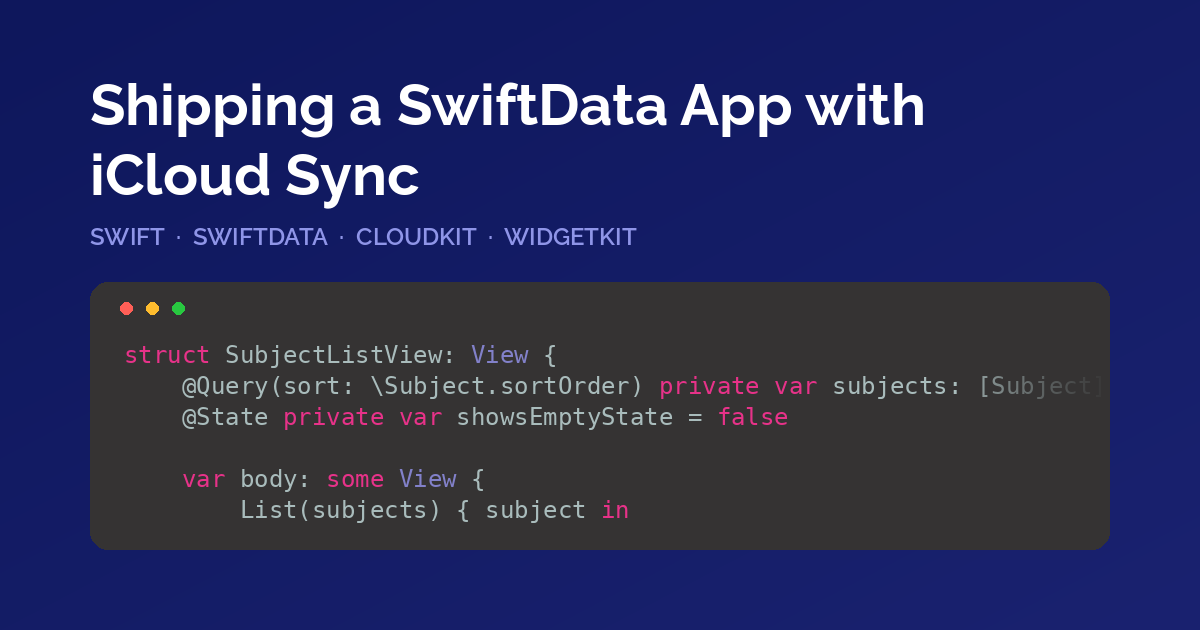
struct SubjectListView: View {
    @Query(sort: \Subject.sortOrder) private var subjects: [Subject]
    @State private var showsEmptyState = false

    var body: some View {
        List(subjects) { subject in
            Text(subject.name)
        }
        .overlay {
            if subjects.isEmpty {
                if showsEmptyState {
                    ContentUnavailableView(
                        "No subjects yet",
                        systemImage: "book",
                        description: Text("Tap + to add your first subject.")
                    )
                } else {
                    ProgressView("Loading your data…")
                }
            }
        }
        .task {
            try? await Task.sleep(for: .seconds(3))
            showsEmptyState = true
        }
    }
}
A timeout is a workaround, and the cleaner version would be to observe an actual "import finished" signal. Core Data exposes NSPersistentCloudKitContainer.eventChangedNotification for this. SwiftData has no documented equivalent, so if you want to build UI on top of the Core Data notification, verify on device that it fires for your SwiftData-managed container before you rely on it.
The same caution applies to conflicts. Two devices editing the same object while offline will resolve somehow, and SwiftData offers no documented hook to influence how. The practical answer is to make conflicts cheap: prefer many small independent properties over one large blob, so a last-write-wins outcome costs a single field instead of the whole object.
Widgets don't hear about remote changes
Worth stating explicitly, because it's a common trip-up. A remote change arriving on the device does not update your widget. WidgetKit doesn't watch the SQLite file, no matter how correctly the App Group is set up. The chain is: remote change arrives → your app merges it → you call WidgetCenter.shared.reloadTimelines(ofKind:).
Which means the reload only happens if the app is running when the change lands. If it isn't, the widget updates on the next timeline refresh the system grants, and that can take a while.
Whether that matters depends entirely on the app. A school timetable changes twice a term, so a widget that lags behind by a few hours is not a problem anybody notices. A battery inventory widget showing which devices need attention next is a different story: the user changes a battery on their iPhone, walks past the iPad on the kitchen counter, and the widget there still lists the device they just dealt with. Same mechanism and the same delay as in the timetable case, but here the user notices it.
If your widget is in the second category, don't rely on the app happening to be open. Reload the timelines whenever your app merges remote changes, and keep the widget's own timeline short enough that the system refreshes it on its own within a window you consider acceptable.
CloudKit's schema is additive
Plan for this one early. You can only add record types and fields to a deployed CloudKit schema. You cannot remove them from production.
That is a CloudKit property, and it quietly limits what your future SwiftData migrations are allowed to do. Renaming a property is, from CloudKit's side, adding a new field and orphaning the old one. The old field stays in the production schema forever.
Two habits follow:
- Treat every shipped property as permanent. Deprecate it in code, stop writing to it, and leave the field alone.
- Keep property renames for the phase before your first App Store build, not after.
Deploying the schema to production
The development and production CloudKit environments are separate, and they update differently. This catches people on their first release.
When you run a debug build, the mirroring layer creates the record types and fields it needs in the development environment automatically. Production does not work that way. It only changes when you promote the schema explicitly:
- Run the app from Xcode until every model type has been written at least once, so the development schema is complete.
- Open the CloudKit Console, select your container, and go to Schema.
- Choose Deploy Schema Changes and confirm the diff from development to production.
Do this before you ship the build that needs those fields. TestFlight and App Store builds use the production environment, so a build expecting fields that only exist in development syncs nothing at all, while the app itself looks perfectly healthy. Make this a step in your release checklist, right next to bumping the build number.
Debugging
Two launch arguments make the sync path visible in the console:
-com.apple.CoreData.CloudKitDebug 1
-com.apple.CoreData.SQLDebug 1
The first logs export and import batches and, more usefully, schema mismatches, including which field the two sides disagree about. That's the difference between "sync doesn't work" and "sync doesn't work because sortOrder isn't in the production schema yet".
Testing
Test on two physical devices signed into the same Apple ID. The simulator is not reliable enough on the push path to draw conclusions from, so verify sync behavior on real hardware.
And test the case that's easiest to skip and hits users first: a second device installing fresh and pulling down an existing database. The initial import is a different code path from steady-state sync, and it's the one where empty states, seeding and half-arrived relationships all show up at once.
Conclusion
None of the constraints in this series are hard to satisfy while you are still writing the model. Default values instead of non-optional properties, optional relationships with inverses, stable identifiers for seeded data, and an empty state that doesn't claim the store is empty are all quick to get right up front. Adding them later means touching every model and every view that reads one.
So design for them on day one, even if version 1.0 ships without sync. You can add sync in a later release, but the model it needs has to be right in the first one. Changing it later leads to more work and potential edge cases.
Happy coding!